Nexa Introduction
Nexa is Conviva's unified AI analysis assistant within the Pulse platform. It consolidates Video Stream Intelligence (VSI) and Digital Product Intelligence (DPI/App) analytics into a single conversational experience, eliminating the need for separate Nexa instances across products.
Nexa accepts natural language prompts to perform multi-level, nested queries across video, ads, and app data. It manages multiple dimensions simultaneously, generates dashboards instantly, and delivers summaries of results alongside suggested next steps — all within one continuous analytical session.
By bringing VSI and DPI analytics together, Nexa enables cross-domain investigation and correlation without requiring context switching between products or manual stitching of results. Key trends across quality of experience (QoE), audience, and engagement are automatically identified and surfaced, providing a comprehensive view of both video streaming and digital product performance in a single interface.
|
Nexa Roles |
Use Cases |
|---|---|
|
Data Analyst Guide for Customer Experience / Product Insights |
Use as a co-pilot for natural prompt discovery of user experience impacts and evaluating areas for UI, navigation, and feature improvements.
Example: What are the active SPI improvement opportunities? |
|
Assistant for System Admin Tasks |
Gain an assistant for admin tasks to confirm user and Pulse setting, such as which notification as receiving AI alert notifications. Example: Which users are currently configured as Precision Admins? |
|
Co-pilot for Data Analysts Insights |
Empower customized, cross-feature report generations, combining time series and dimensional analysis across cross-features for targeted pattern, user experience, and service performance analysis.
Example: What content keeps users engaged? |
|
Digital Partner for fixing App and Customer Issues |
Access a digital partner for fixing App and customer issues, before users are impacted.
Example: When users report playback errors, investigate whether the issue is isolated to specific device types, correlated with a recent software release, or related to CDN performance and delivery. |
|
Assistant for Marketing Campaigns Data |
Use as a partner to improve campaign effectiveness and market data analysis.
|
|
Agent Performance Enhancer |
Discover agent performance and optimization insights
|
Nexa Getting Started
Capabilities
The following capabilities define the scope of analysis and interaction that Nexa provides within the Pulse platform.
-
Unified Cross-Product Analysis
Nexa consolidates VSI and DPI/App analytics into a single conversational interface, enabling simultaneous investigations across video and application data. The platform directly correlates insights across these domains, which allows users to identify shared root causes without switching between products or manually aggregating results. -
Natural Language Querying
Nexa converts plain English prompts into structured, multi-level, nested queries using a large language model (LLM). Investigations can begin at a broad business level and progressively narrow to specific dimensions, metrics, or viewer-level detail. Complex analytical requests across multiple dimensions are processed and executed within a single conversational session.
-
Automated Artifact Generation
Nexa produces structured, shareable outputs that extend beyond standard conversational responses. AI-generated reports include detailed narratives, metric values, performance deltas, top-dimension drivers, and confidence caveats. Additionally, Nexa builds interactive dashboards equipped with adjustable time pickers and data filters. The platform allows full sessions to be shared as links, and schedules recurring reports for automated email delivery at daily, weekly, or custom intervals.
-
Operationalized and Repeatable Analysis
Nexa moves analysis from one-time to repeatable. Effective prompt patterns are saved as reusable templates and can be re-run across time periods or customer contexts. Scheduled execution provides the option to automatically deliver KPI digests, alert watches, and executive readouts. Full session history is retained, allowing any prior investigation to be resumed or reused as a starting point.
-
Viewer-Level Intelligence
Nexa drills down to individual viewer sessions, surfacing session timelines, device and network conditions, and the exact failure chain across video and app products. Also, Nexa delivers structured summaries of analytical results and recommends subsequent investigative steps, supporting informed decision-making and reducing the time required to move from data to action. This capability is particularly applicable to customer support and incident review use cases.
-
Anomaly Detection and Root-Cause Analysis
Nexa continuously identifies data irregularities and surfaces key trends across quality of experience (QoE), audience, and engagement. Detected anomalies are highlighted with contextual summaries to accelerate root-cause analysis and resolution across both video and digital product data.
-
Multilingual Support
Nexa accepts prompts in any language and delivers responses in the same language, enabling consistent analytical access across globally distributed teams.
 Enabling Nexa
Prerequisite: Verify the User has the Admin role and AI enablement admin permission.
Only Admins with this permission can view and accept the AI policy through Pulse, which displays a brief message with a link to the policy document. Administrators must accept the policy on behalf of the entire team.
For Nexa permission details, see User Management.
Non-administrative accounts receive a message instructing them to contact their administrator to enable Nexa.
-
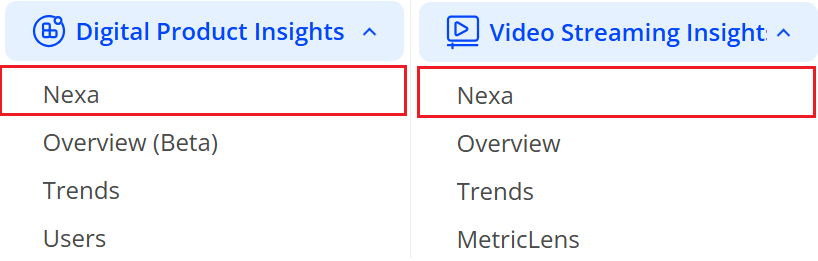
Navigate to the Left Navigate pane and click VSI or DPI.
Image: Nexa
-
Click Nexa on the navigation to see the Nexa page.
Image: Nexa homepage

-
On the Nexa screen, click Enable Nexa for My Team to enable Nexa for the team.
Image: Nexa Counter

Action Buttons
The contextual action buttons appear alongside agent responses to provide intelligent, task-relevant follow-up suggestions. These buttons dynamically surface recommended next steps based on the agent’s output, enabling efficient continuation of analysis without manually formulating additional queries. The action buttons support common workflows such as drilling down into specific dimensions, refining filters, and comparing time periods. By presenting these contextual options in real time, the feature reduces interaction friction, accelerates decision-making, and enhances overall user productivity. This enhancement strengthens guided analytics capabilities by embedding actionable intelligence directly within the conversational experience, ensuring a seamless transition from insight to deeper exploration.
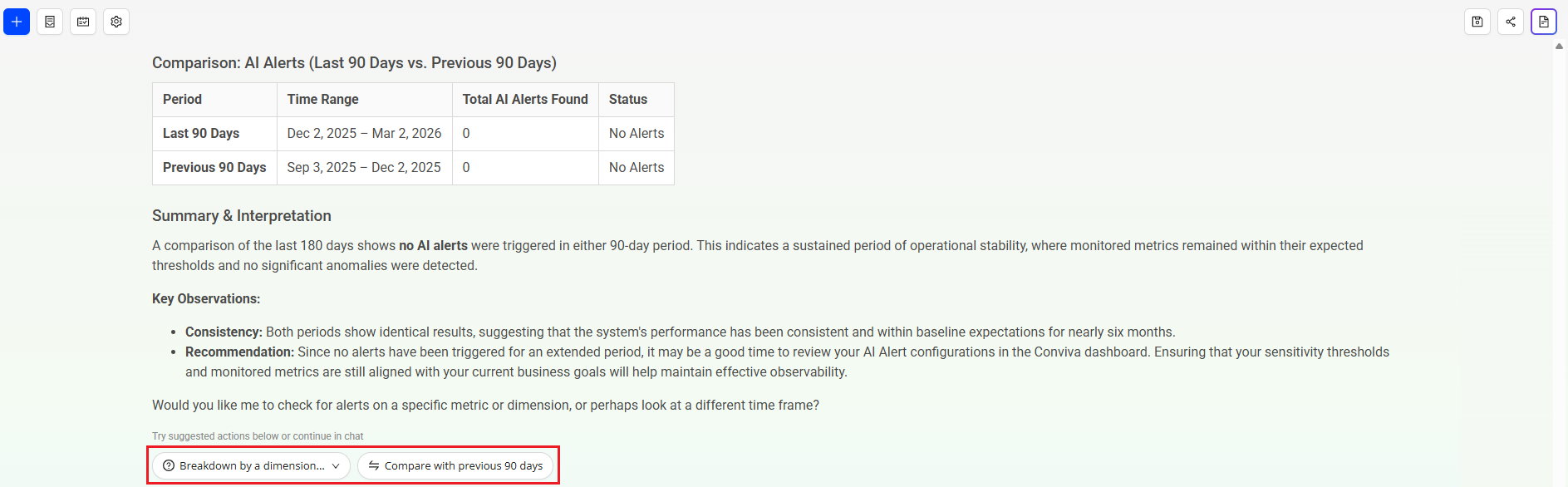
To see the action buttons,
-
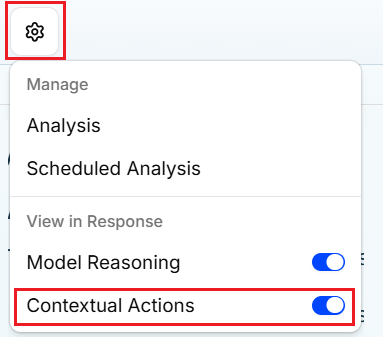
Click the Settings button.
-
On the Manage screen, switch on the Contextual Actions toggle.
Nexa Concepts and Context
Tokens and LLMs
Tokens
Tokens are the fundamental units of text that large language models (LLMs) process. Nexa interprets text by breaking it into tokens, analyzing them, and predicting subsequent tokens to generate responses. Understanding tokens and their usage is crucial for effective use of Nexa. Tokenization influences how queries are processed, the accuracy of results, and the overall efficiency and cost of operations. Conviva continues to optimize token usage to ensure responses remain accurate, efficient, and cost-effective.
For example, the sentence “Nexa makes data simple” may be split into tokens such as “Nexa”, “makes”, “data”, and “simple”.
LLMs
LLM stands for Large Language Model. Nexa generates code using Gemini 2.5 Flash, which provides robust programming performance.
Note: Customer data from Nexa is never used to train Gemini AI.
At a high level, LLMs function as advanced autocomplete systems. They do not possess knowledge in the human sense; instead, they generate outputs by identifying and applying patterns learned during training. In Nexa, the LLM generate the insights that aligns with a given prompt, and the dashboard.
Token limits
LLMs can only handle a certain number of tokens at a time, which includes both:
-
The input you give (for example, a long question or document)
-
The output it generates (for example, the response, or the code)
-
System Prompts or contexts
Prompts
A prompt is a message you send to the AI. How you write your prompts is key to getting good results.
Context
Context refers to all domain information available to the AI, including prompts, prior responses, and existing code. The context window defines the amount of text an LLM can process simultaneously. Nexa provides a large context window; however, the AI cannot be relied upon to retain the entire conversation. Larger context windows also consume tokens more quickly, which increases cost. To preserve context while maintaining a smaller window, the AI can summarize the conversation to date and then reset the context window.
Note: If Nexa is not used for 30 days, the conversation history will be removed.
Understanding Tokens – Monthly Token Limit
Nexa employs large language model (LLM) technology to process prompts and generate sites. While knowledge of the underlying technical details is not required, it is essential to understand that LLMs operate on a token-based system. Tokens provide a standardized measure of Nexa’s processing workload. Nexa structures its free and paid plans around token usage.
Token Display in Nexa
Token usage in chat provides insight into the number of tokens consumed by prompts. Nexa displays token usage by default.
Nexa uses Token when it:
-
Reads the input
-
Think and process
-
Builds the output
Larger and more complex websites or applications require more tokens to generate.
Note: Conviva provides 100 million free tokens each month for every customer. The counter refreshes at the start of every month (UTC zone), and unused tokens do not carry over. Once the free tokens are utilized, contact Conviva Support for additional access.
Accuracy
LLMs can generate inaccurate or outdated outputs for several reasons:
-
Training set age: LLMs train on large datasets but cannot access information created after the training process concludes. When building software, developers must recognize that the LLM may not be aware of the latest versions of tools and frameworks.
-
Hallucination: LLMs operate predictively rather than deterministically. They may return different outputs for identical prompts and occasionally generate false information.
User Timeline Sessions
Nexa enables real-time, user-level experience analysis, allowing Customer Support teams to instantly view session histories, performance issues, and user journeys.
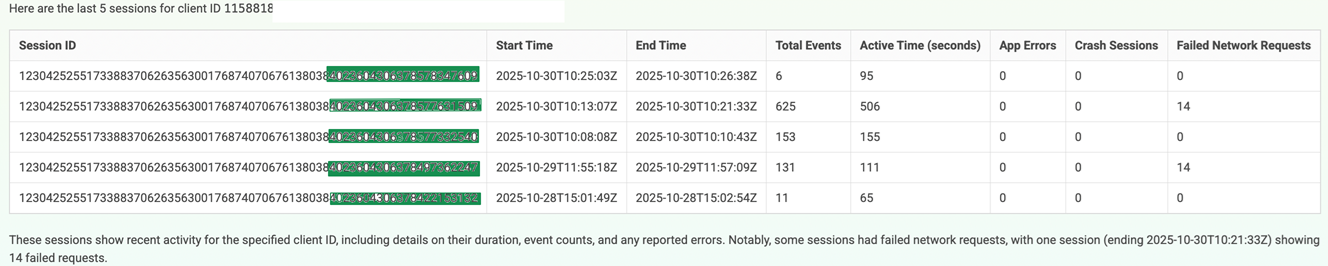
For example, “Show issues for user 12345” or “List the last five sessions for client xyz,” teams get immediate, context-rich insights without switching dashboards.
The new User Timeline Dashboard consolidates session data, errors, and performance anomalies into a single, intuitive view. By combining performance telemetry with experience metrics, Nexa accelerates troubleshooting and improves ticket resolution. Overall, this capability helps teams understand user impact more clearly and deliver faster, more effective customer support.
For more information on user timeline, see User Timeline.
Example prompt and response:
"What were the last five sessions for client ID 1158818?”
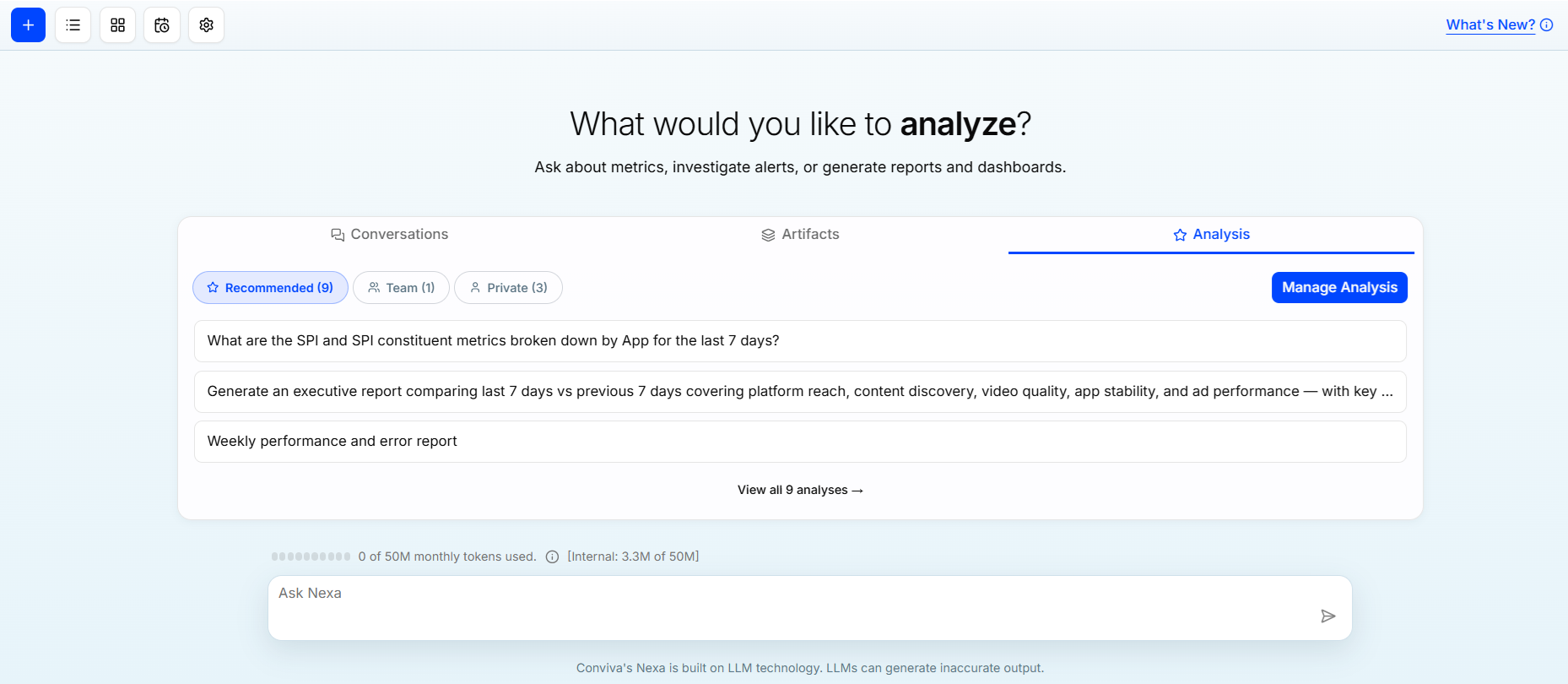
Analysis Templates
Nexa allows saving session conversations as reusable analysis templates for future reference. This capability standardizes workflows, improves efficiency, and promotes consistent analysis practices across teams.
Nexa supports three categories of analysis templates, hosted on Nexa homepage:
-
Recommended: Consist of templates curated and recommeded by Conviva. These templates represent best-practice analyses and provide a starting point to the users.
-
Private: Include templates created and stored for individual reference. These templates enable quick access to frequently used analysis patterns without affecting team-wide visibility.
-
Team: Comprise templates explicitly marked as Team. These templates are shared with the team, enabling consistent analysis approaches and knowledge reuse across collaborators.
Together, these template types provide flexible options for individual productivity, team collaboration, and administrator-recommended best practices within Nexa.
Save Sessions
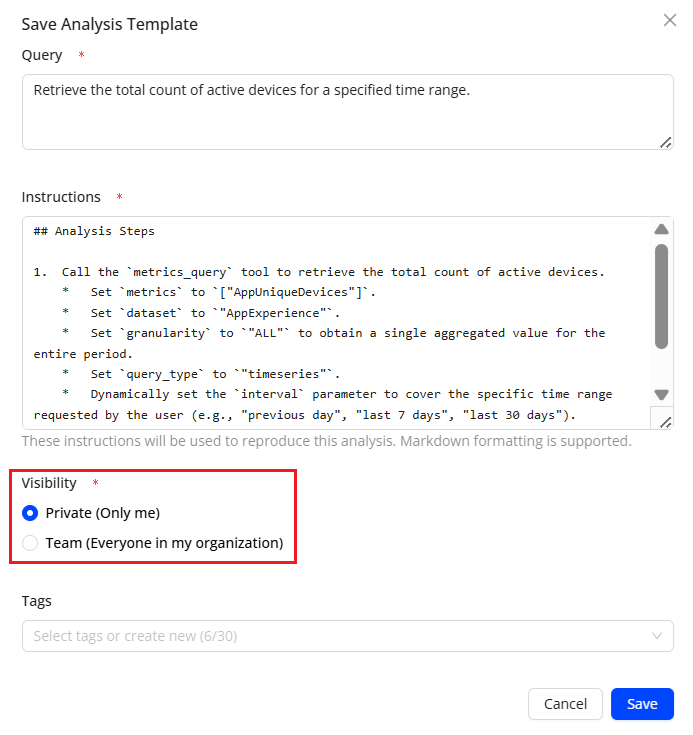
To save the sessions,
-
After asking the query, click the Save Analysis icon.

-
Select the Visibility criteria.
-
Click Save and see the entry in the Nexa home page and in All Sessions page.
Renaming Sessions
Nexa provides an option to rename saved sessions, making it easier to identify, organize, and retrieve them over time. Clear session names improve context tracking and keep your workspace easy to navigate.
To rename a session,
-
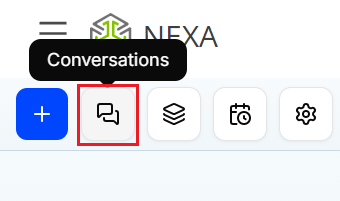
Click the Conversations icon to see all sessions.
-
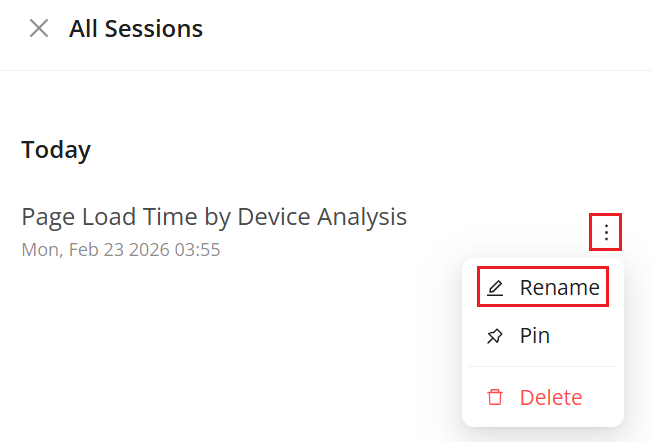
Click the Kebab icon adjacent to the saved session which needs to be renamed.
-
On the Rename Session pop-up, update the name for the session and click Save to save the updated session.
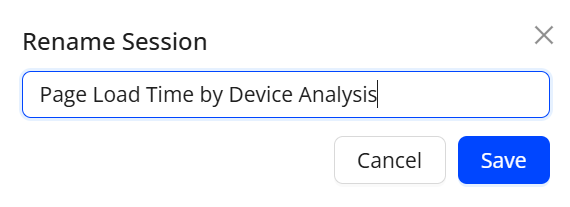
Note: Saved sessions are retained for 30 days from the date they are saved.
Pinning Sessions
Nexa enables pinning of a session to ensure prioritized visibility and quick access. Pinning keeps the selected session prominently displayed within the workspace. This functionality supports efficient session management and streamlined navigation.
To pin a session,
-
Click the Conversations icon to see All Sessions.
-
Click the Kebab icon adjacent to the saved session which needs to be pinned.
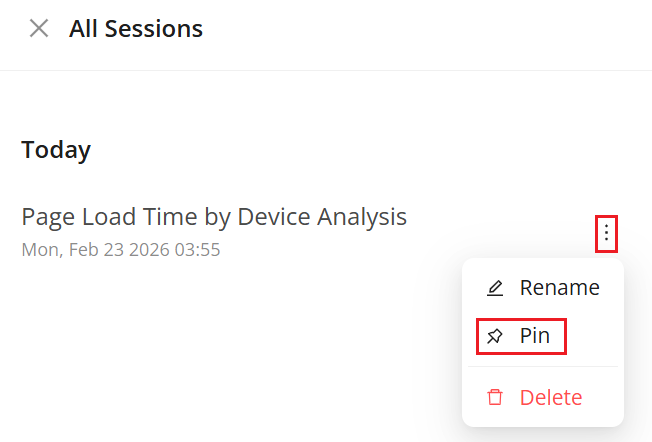
-
The pinned session is displayed in the pinned section of All Session page.
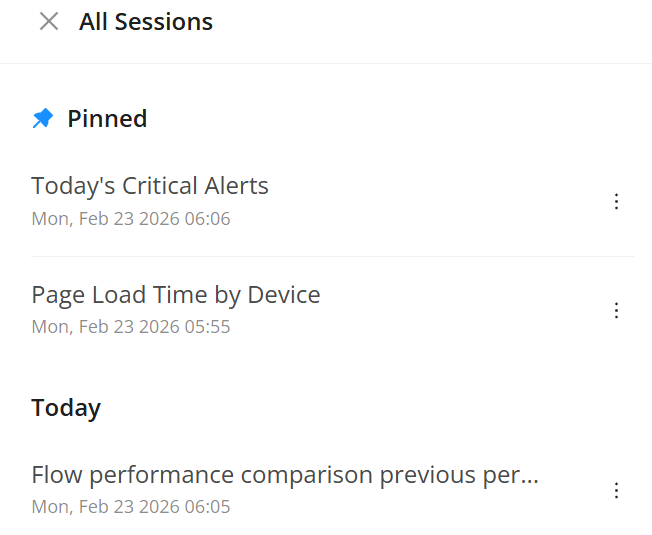
Note: Pinned sessions do not expire and cannot be deleted. Nexa allows a maximum of 10 pinned sessions at any given time.
Flow Auto insights
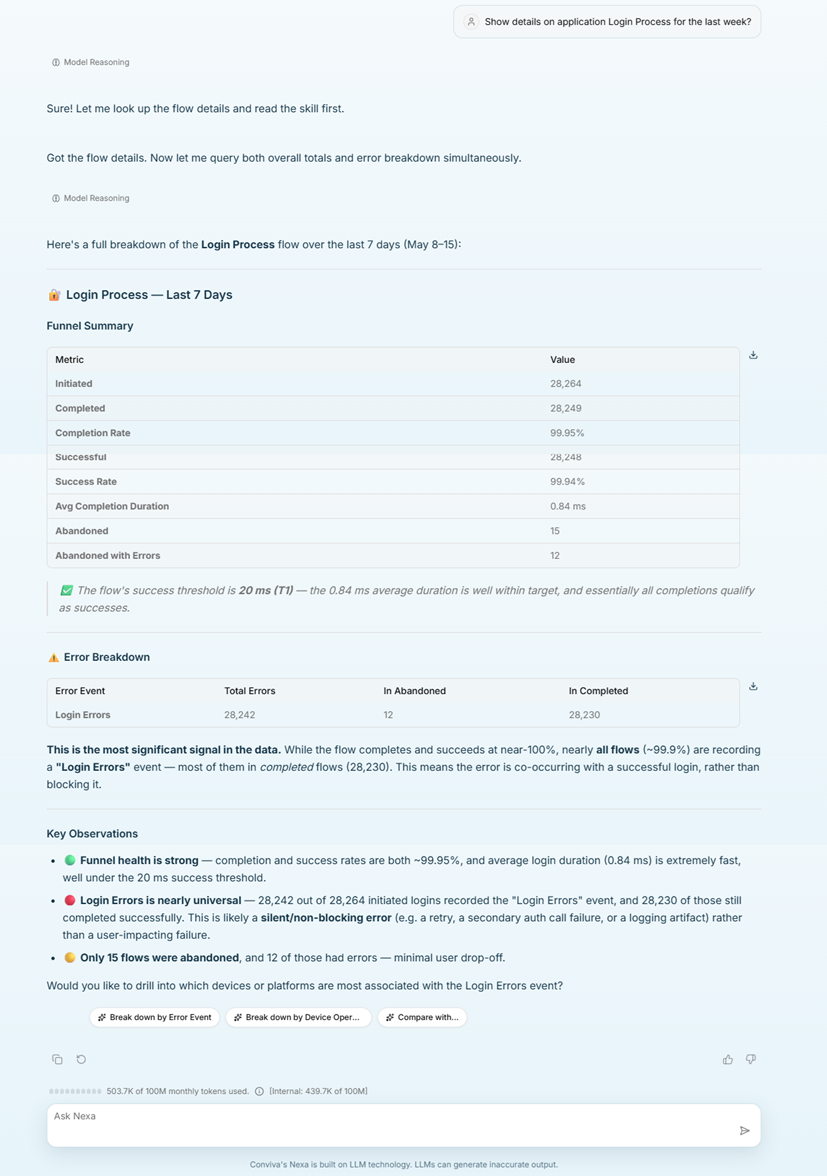
Analyze any flow in Nexa and Nexa shows additional insights and recommendations for the flow.
Example prompt and response:
"Show details on application login process for the last week?"
Reports
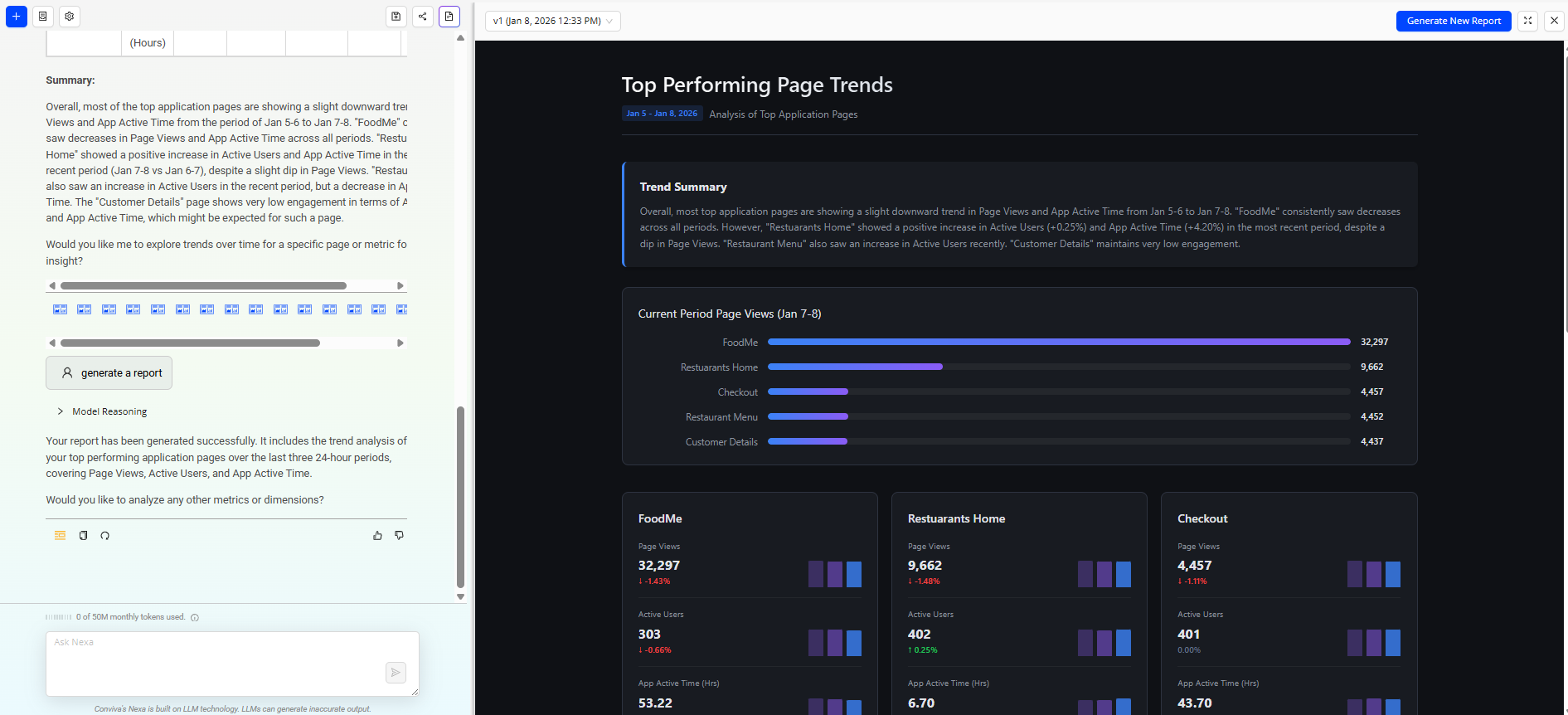
Reports provide a visual representation of the provided analysis.
-
Click the Artifacts icon to see the report page.
-
Click the Generate Report icon or type Generate Report to see the visual representation of the generated analysis.
-
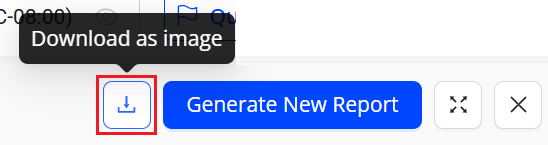
Click the Download icon to the download the report as an Image.
Schedules
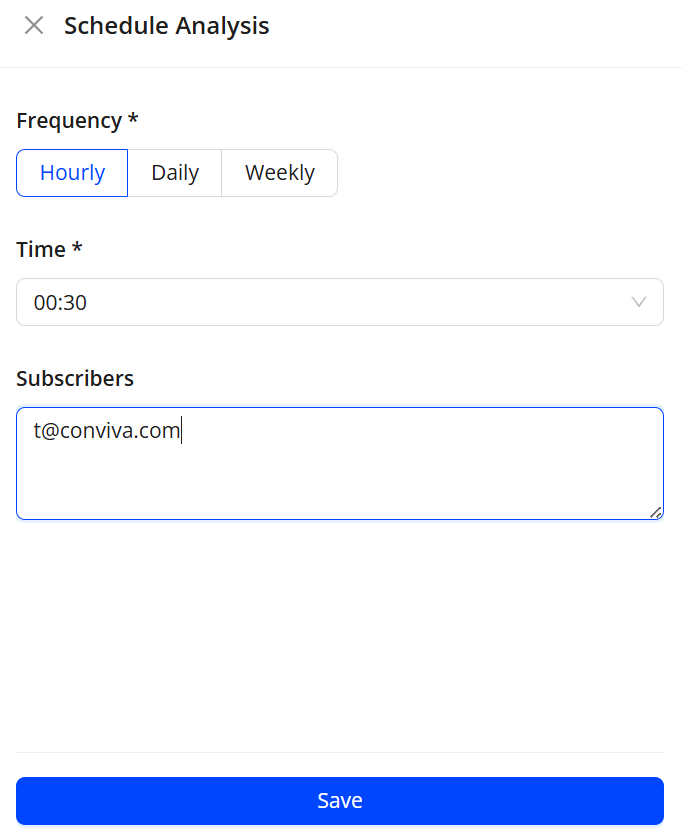
The Manage Schedules feature automates the execution of saved analysis queries at predefined times and frequencies. It runs queries at the configured schedule and generates the corresponding reports without manual intervention.
The interface displays key schedule details, including query name, frequency, run time, weekday, creator, subscribers, and last updated information. Scheduled reports are delivered automatically to designated subscribers, ensuring consistent and timely access to analysis results.
To create a schedule,
-
Click the Settings button, select Schedule Analysisfrom the dropdown.
-
From the list, click the kebab icon next to the saved analysis entry to see the Schedule Analysis screen.
-
On the Schedule Analysis screen, select the frequency, time and subscriber details and click Save.
Nexa Use CaseTokens LLMs Gemini Tokens prompt Context Nexa