Executive Email 2.0 is deprecated on 22nd May 2025.
We recommend migrating the emails to the Schedule Management feature in the Custom Dashboard, which offers Date Compare functionality.
Use the sample below as a reference to create a custom dashboard and schedule the required email delivery.
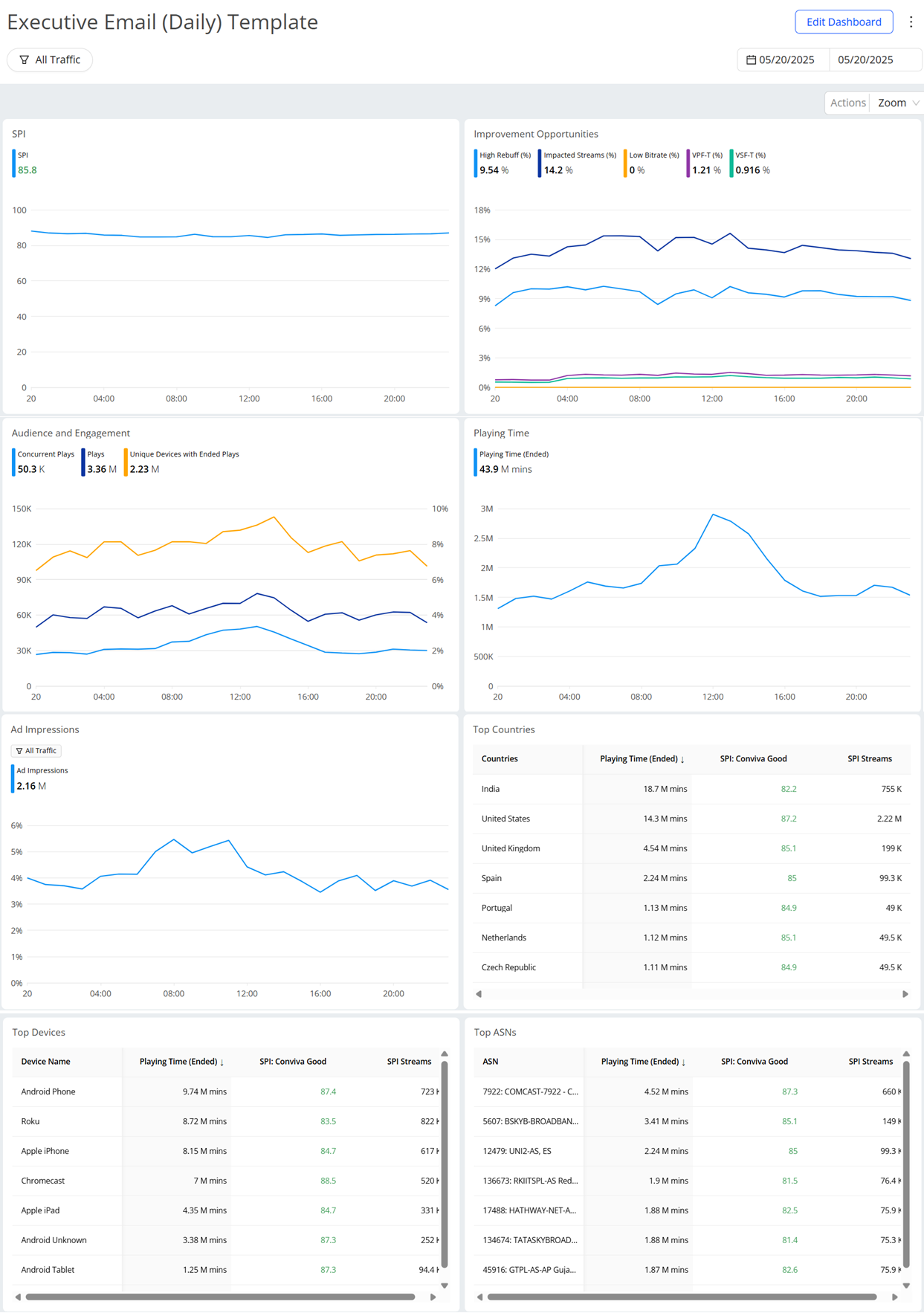
To create a custom dashboard, see Custom Dashboard.
Scheduling Custom Dashboards
As a dashboard owner or viewer, schedule email delivery of the custom dashboard for up to 200 email addresses, include alias email groups. This delivery enables flexible access to impactful viewer experience and performance insights from mobile phones and other types of devices as extensions of the VSI or DPI application.
-
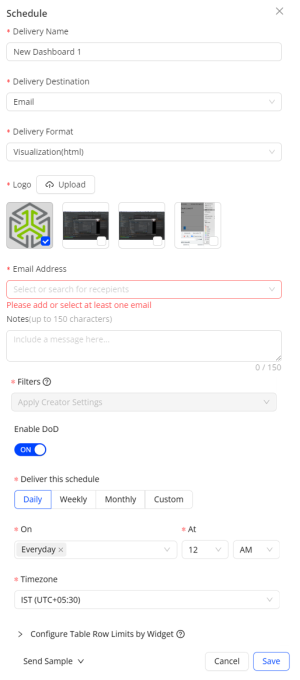
To set up scheduled email delivery of a custom dashboard, from the kebab icon select Schedule.
-
Specify the dashboard name, upload the logo for HTML delivery format, and select the delivery format—HTML, CSV, or PDF. Enter the recipient email addresses. Separate multiple addresses with commas, semicolons, or spaces; up to 200 addresses are allowed.
Note: The Delivery Name field is automatically filled with the dashboard title.
-
Select the filter and time range settings.
-
Apply Creator Settings: Applies the filter and time range specified by the dashboard creator. Creator updates apply to all incoming deliveries. For example, if the creator modifies a dashboard time range from Yesterday to Last 7 days, the Last 7 days update applies to all incoming deliveries, even if the users had modified their filters or time range.
-
Apply My Current Settings: Applies the filter and time range specified by the user, independent of the dashboard creator settings. Creator updates do not override any applied user settings. For example, if the creator modifies the dashboard time range from Yesterday to Last 7 days, the users modified settings at schedule creation still apply to their filters and time range.
-
-
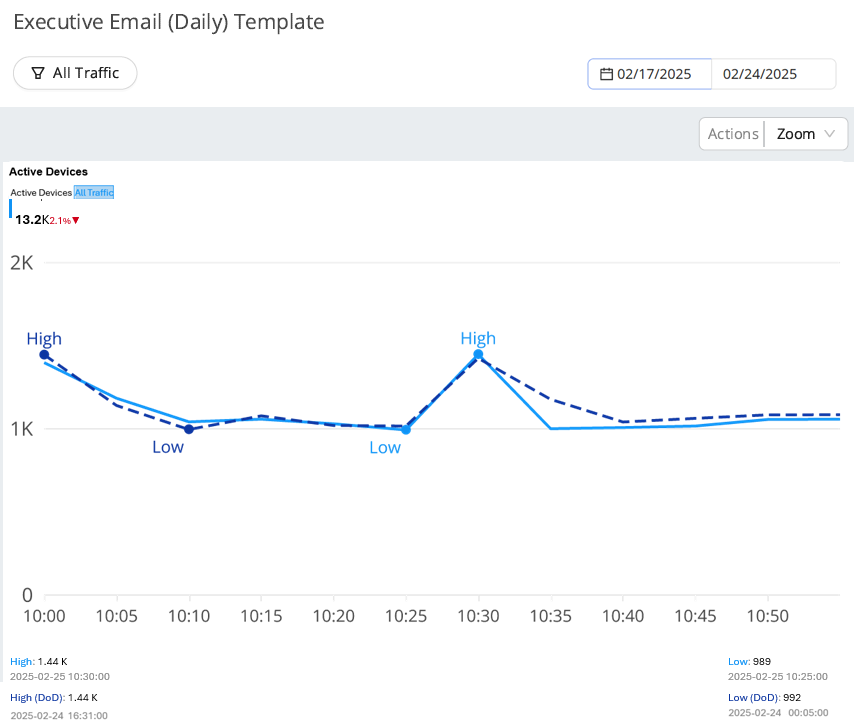
(Optional) Enable DoD: Select the toggle to compare the dimensions and metrics for the selected date and time range. By default, the schedule shows data for the last hour.
-
Select the delivery frequency as Daily, Weekly, Monthly or Custom with a selected date range, then specify the timezone to decide when to trigger the scheduled delivery.
-
(Optional) When selecting the HTML delivery format, configure table row limits for each widget as needed. The default row limit is 5, and the maximum allowed is 200.
Note: Selecting CSV as the delivery format exports all results without any limitations on the number of rows.
-
Select one of the options from the "Send Sample" drop-down list to receive a sample delivery of the custom dashboard for validation.
-
Self: Send the sample to yourself.
-
All: Send the sample to all selected recipients.
-
Manage Scheduling
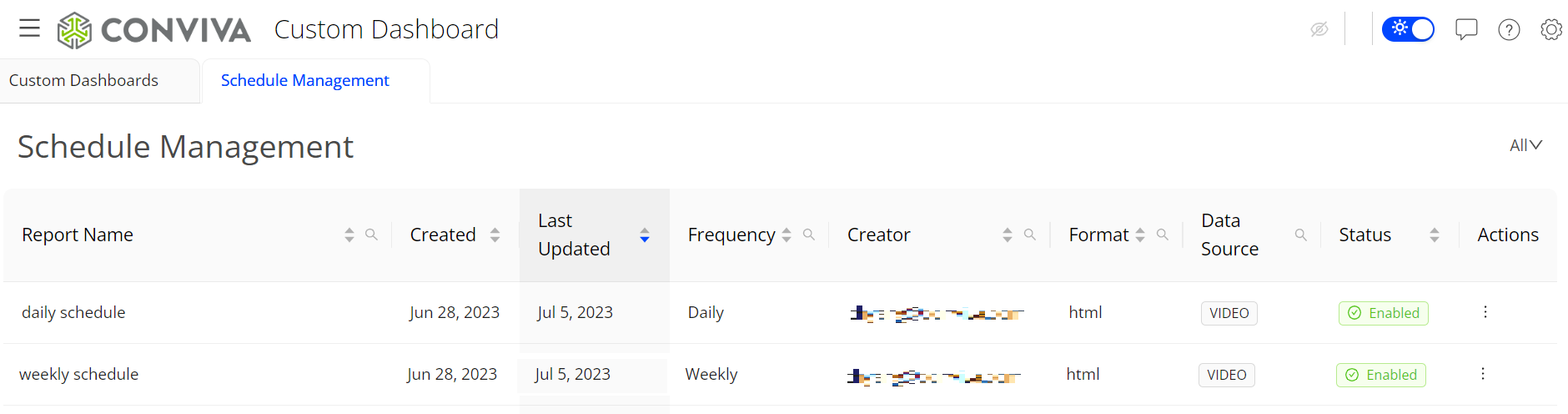
To manage scheduled custom dashboard deliveries, select one of the options:
-
On the Custom Dashboard page, select the “Schedule Management” tab to manage all schedules.
-
On the “Custom Dashboards” list page under Actions, select “Manage Schedule” to manage the schedules created for that dashboard.
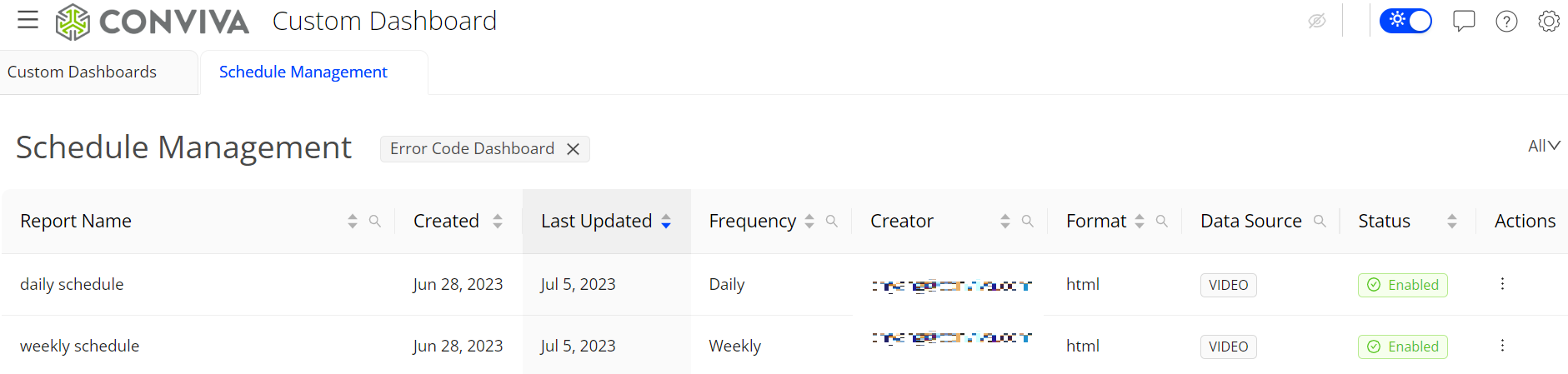
Note: To quickly find a schedule, click the Search icon and enter at least part of the filter name.
Send a delivery to a personal email address, if required.
Note: Admins can clone, edit, enable/disable, and delete all scheduled deliveries. Non-admin users can only clone eligible scheduled deliveries, and edit, enable/disable and delete scheduled deliveries they created.
Deprecate Executive Email Custom Dashboard's Schedule Management Deprecate Executive Email Custom Dashboard's Schedule Management Deprecate Executive Email Custom Dashboard's Schedule Management