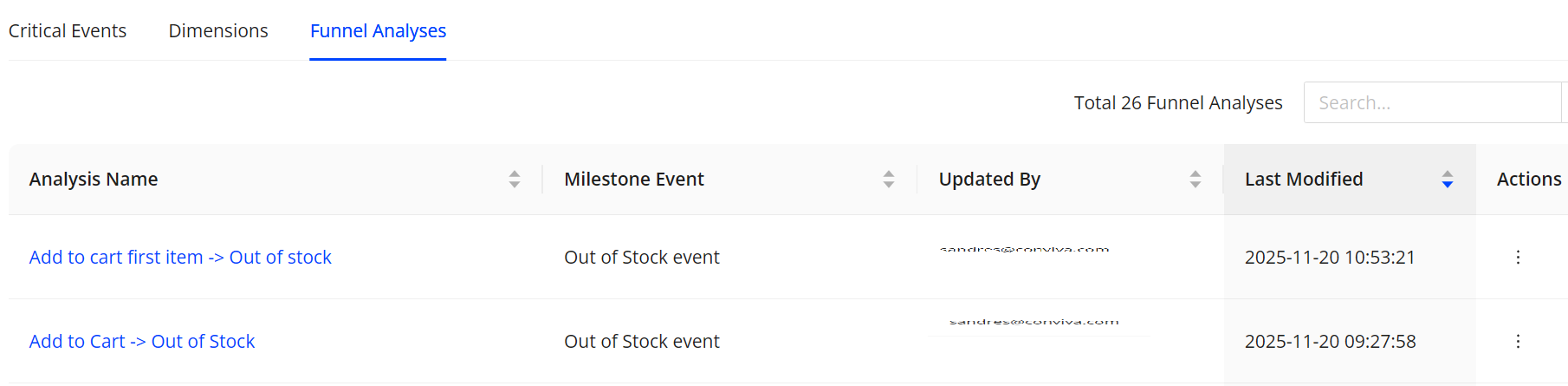
The Management tab provides centralized access for managing path and pattern assets and funnel configurations, including critical events, dimensions, and funnel analyses.
-
Critical Events: Edit, explore in a journey, make the critical a dimension and delete the event.
-
Dimensions: Edit and delete dimensions.
-
Funnel Analyses: View and delete analyses.
Critical Events
A critical event represents a key moment of business value or user intent and forms starting point for paths steps and patterns.
The Critical Events tab displays a complete list of all configured critical events, along with the detailed settings. The tab enables to Edit, explore in a journey, make the critical a dimension and delete the event.
When attempting to delete a Critical Event that is already used in a saved Funnel, a confirmation tooltip appears. If the deletion is confirmed, the Critical Event is removed, and the event is also removed from any saved Funnels that use it.

Creating and Editing Critical Events
Critical Events can be created and edited from two locations in Pattern Analytics:
-
Management > Critical Events
-
Funnel Analyses (edits made in either location apply globally across Pattern Analytics)
-
Select + Critical Event to open the Edit Critical Event slideout on left-side.
-
Enter the critical event name in the Event Name field.
-
In the Mapping Rules section, define the event-matching logic:
-
From the drop-down list, type or select the raw event.
-
Select an Event Tag Key, then choose the corresponding tag key value.
-
Configure the condition, selecting from:
-
contains, not contains
-
equals, not equals
-
is empty, is not empty
-
starts with, ends with
-
match pattern
-
Logical operators AND and OR
Note: is not empty: The string contains at least one character. is empty: The string is empty (zero characters) or null (no value). For match pattern, the asterisk (*) wildcard represents one or more characters and must be used with additional characters. Example: v*/livestreams matches v1/livestreams and v2/livestreams. A standalone * is not supported.
-
-
-
Apply additional rules using AND or OR logic as needed.
-
(Optional) Add additional raw events if multiple mappings are required.
Dimensions
The Dimensions tab displays the full list of dimensions, including their tag keys and update information. Tag keys define the attributes used to group, filter, and analyze event data, making them essential for accurate segmentation.
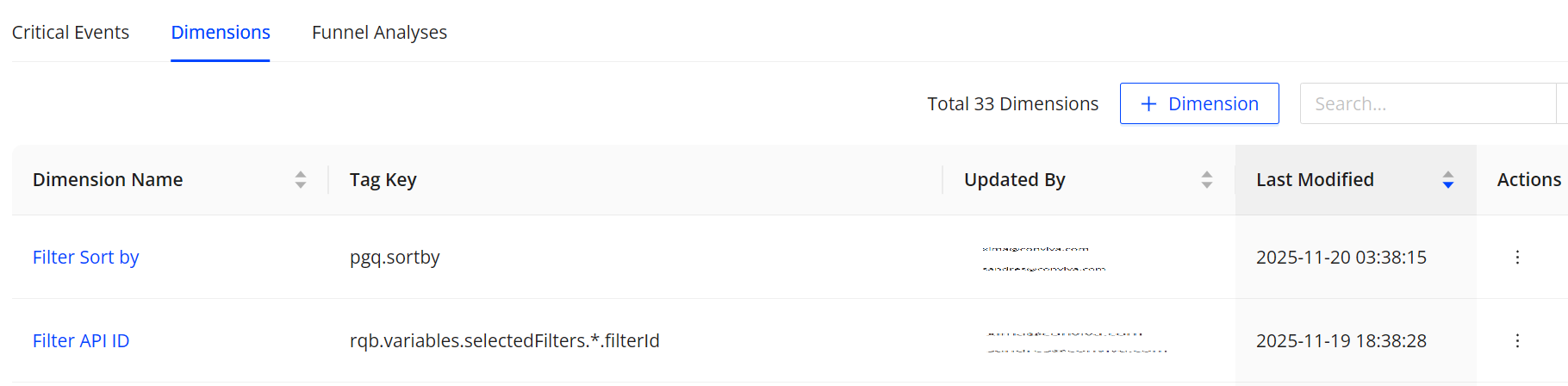
After dimensions are created, they appear in the Add Dimension Table list on the Funnel page. Selecting these dimensions enables analysis of conversion breakdowns.

Creating Dimensions
Creating a dimension involves defining the attribute used for grouping or filtering event data. Before a dimension is saved, its name, tag key, and the events that supply its values must be specified.
-
Enter the dimension name in the Dimension Name field.
-
In the Configuration section, fill out the field:
-
Select or enter a tag key, such as payment_method.
-
Select the tag key resource, either from all applicable events, or from the specific event.
For event-specific tag keys, select the relevant mapped events from which the dimension values are extracted.
-
Click Save to create a dimension.
-
Funnel Analyses
A Funnel represents a defined sequence of steps leading toward a configured ending event. The Funnel Analyses tab displays the full list of created Funnels, including each Funnel’s configured ending event (milestone) and its update information.
The Actions column in the Funnel Analyses table enables access to the Funnel page and removal of the Funnel.