Cohort Replay enables the visual reconstruction and review of user navigations and actions within a customer's app based on a cohort of impacted users. This feature captures how users within an impacted cohort interact with the app, including clicks, navigation, scrolling, media engagement, and text input, and then enables replaying these interactions in a video-like experience. Typically, cohorts of users focus session replay on groups of user related to an AI alert condition or dimensional drill-down in Trends.
The cohort user session replays provide direct visibility into how customers interact with digital platforms and user behaviors, based on a sampling percentage of user sessions. For data compliance, Conviva applies configurable masking levels (light, medium, or advanced) to protect Personally Linked/Locatable (PLL) data.
Note: Cohort Replay is disabled by default. As a prerequisite, customers must upgrade to the latest sensor version. To enable and use cohort replay, contact your Conviva representative to configure the sensor remote control settings, adjust the sampling percentage, and set the masking level according to your specific application requirements.
Supported Platforms and Versions: Web (JS) version 1.4.3 and above.
Use Cohort Replay to:
-
Understand the details in user behaviors and friction points
-
Link from Funnel and metric anomalies to visual behavior representations for quick user behavior optimizations.
-
Analyze the impact of user experience on flagged AI Alerts and check for anomalies.
-
Monitor the exact sequences of user actions to analyze behavior and UI improvements.
Launching Cohort Replay
Access the Cohort Replay from the Trends or Users Dashboard,
-
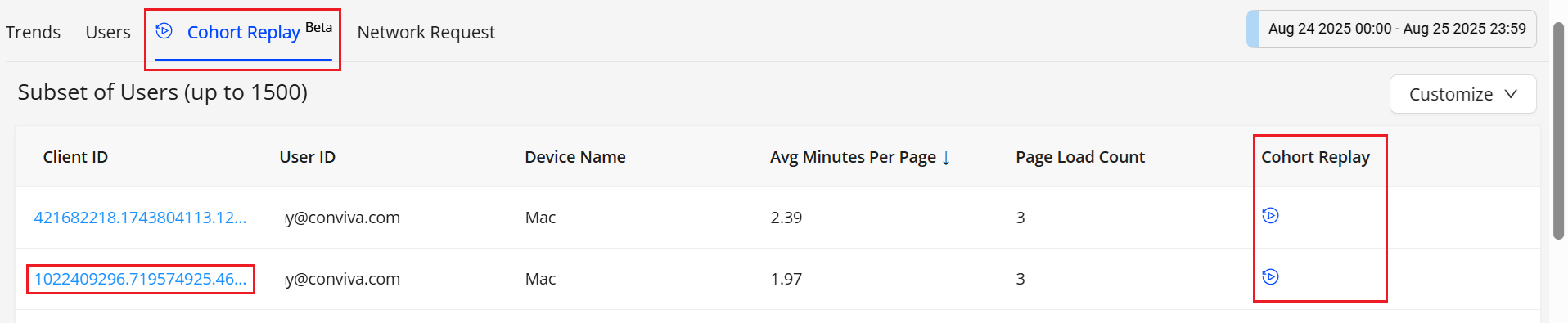
Navigate to Trends >> Cohort Replay Tab
-
Click a Client ID or Cohort Replay icon associated with the user session to see the session details in a new User dashboard tab.
-
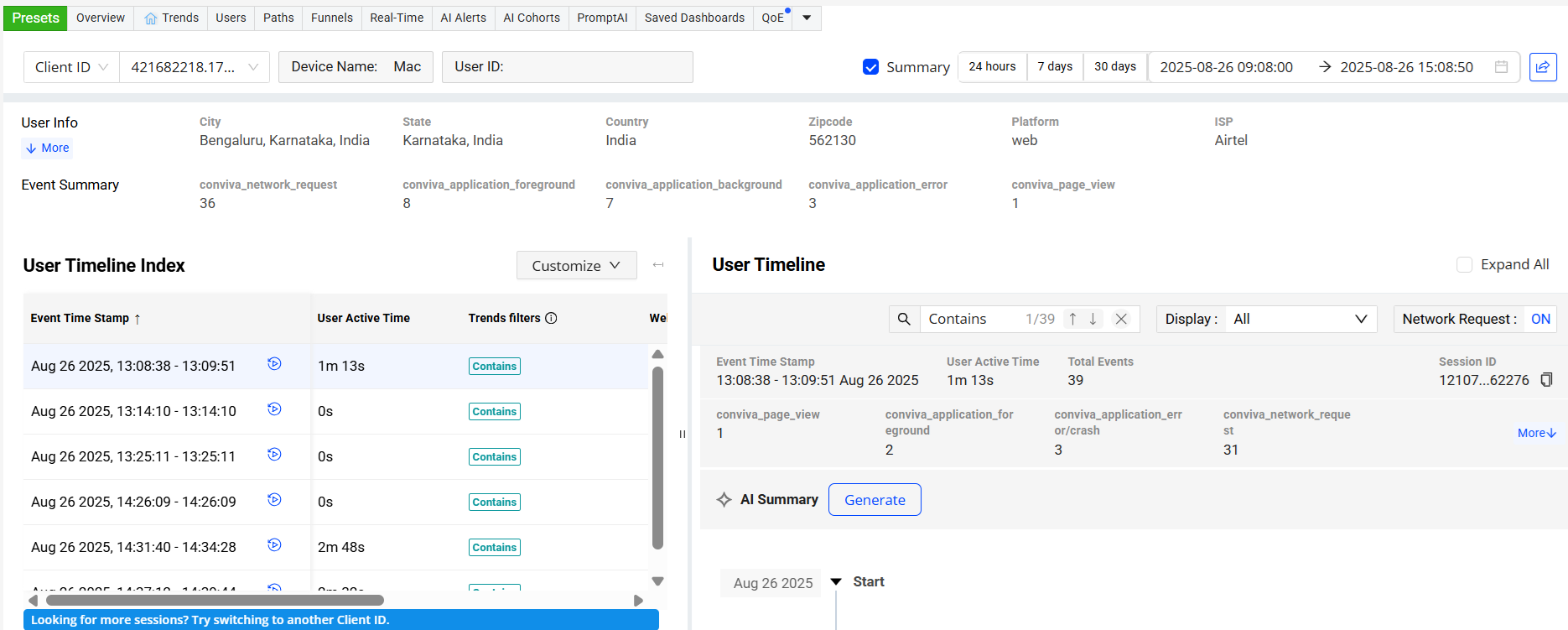
On the Users timeline, click the Cohort Replay icon adjacent to the Event Time Stamp to see the user timeline details with the cohort replay.
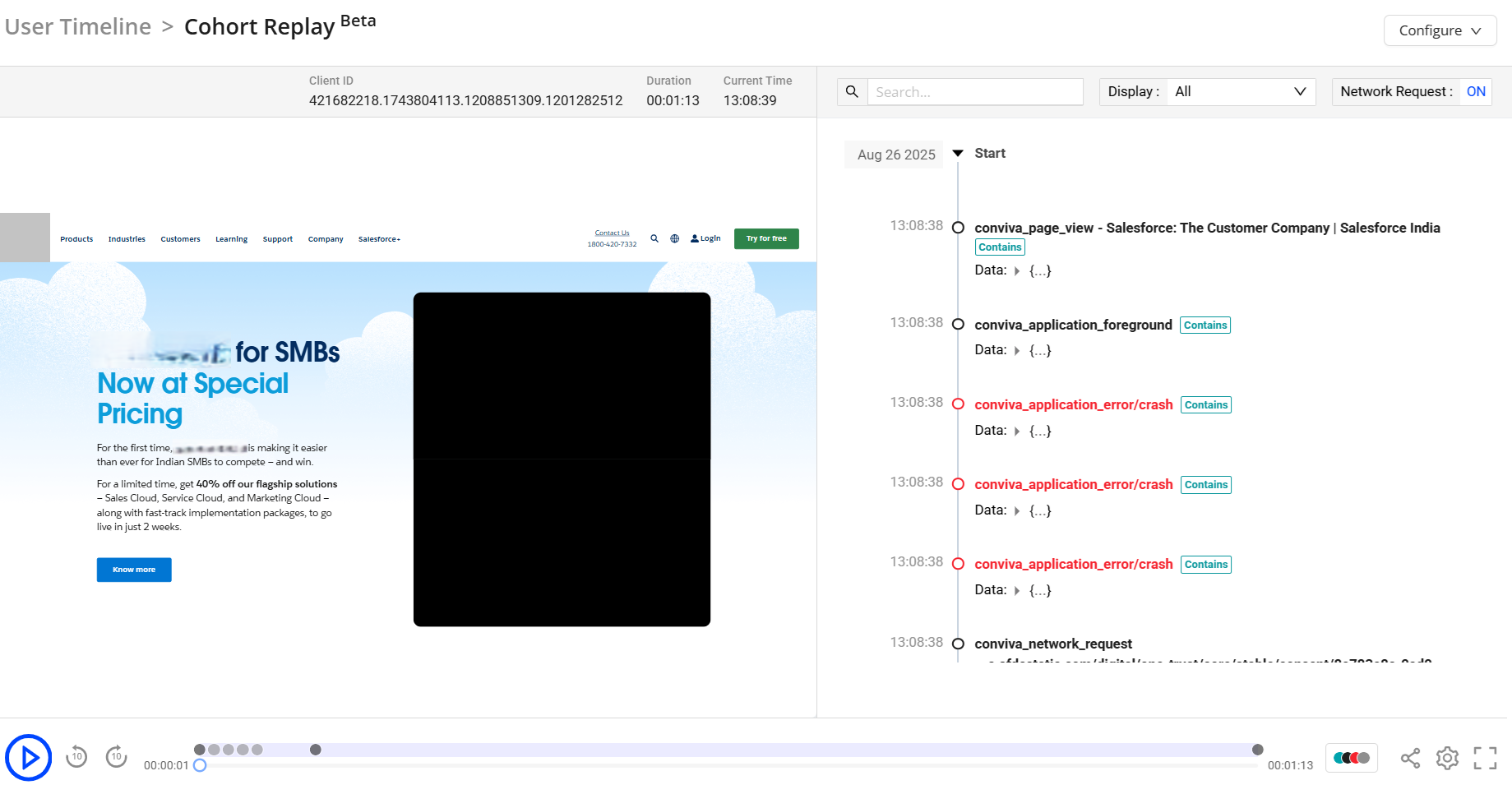
The player enables detailed session analysis through the following features:
-
Events Indicator: Colored dots display events, network requests, and errors. Hover the legend next to the share button to see the different types of events associated with the User Timeline.
-
Playback Controls: Options are provided to pause playback, seek to a specific position, fast forward by ten seconds, and rewind by ten seconds.
-
Session Sharing: Share the sessions for collaborative investigation of issues.
-
Settings: Speed control options allow adjustment of playback speed.
-
Network Request: Toggle to see the network request details in the user timeline event list.
-
Actual Time: Refers to the time at which the event occurs, as displayed in the timeline tab.
-
Replay Time: Replay Time of a player is the relative time offset within a session replay that indicates when a specific playback action, event, or state occurs during the replay. It represents the elapsed time from the start of the replay and is used to correlate player behavior, events, and performance metrics within the replayed session.
These capabilities support precise navigation, issue identification, and collaborative troubleshooting.
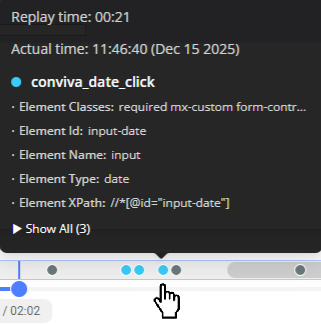
The grey area in the seek bar represents periods of inactivity. Hovering over the grey area displays the Replay Time and Actual Time.
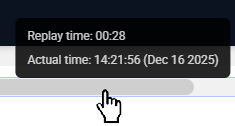
The colored dots represent captured activities. Hovering over a dot displays the replay time, actual time, and event details. For a description of the colored dots on the replay timeline, see Legends.
-
-
On the Cohort Replay screen, click the Configure drop-down and select Configure Replays to view the Cohort Replay configuration page in Sensor Remote Control.

Configuring Cohort Replay
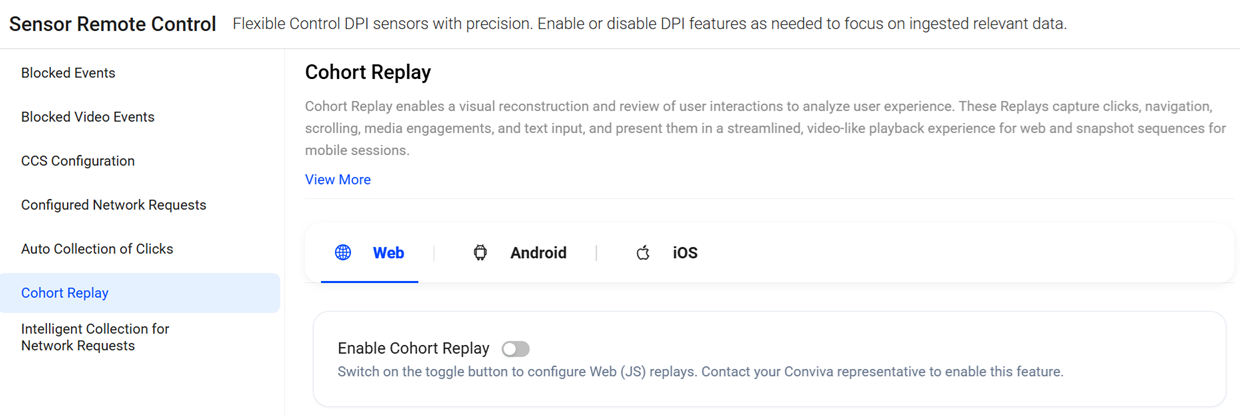
Enable Cohort Replay in the Sensor Remote Control tab. Cohort Replay options allow:
-
Set the sampling percentage to define the proportion of user sessions captured for Cohort Replay.
-
Configure the masking level to secure PII data.
Note: Cohort Replay configuration in Sensor Remote Control is restricted to Conviva Administrators due to sampling constraints. Only Conviva Admins can modify or update these settings. Contact your Conviva Administrator to request any changes to the configuration.
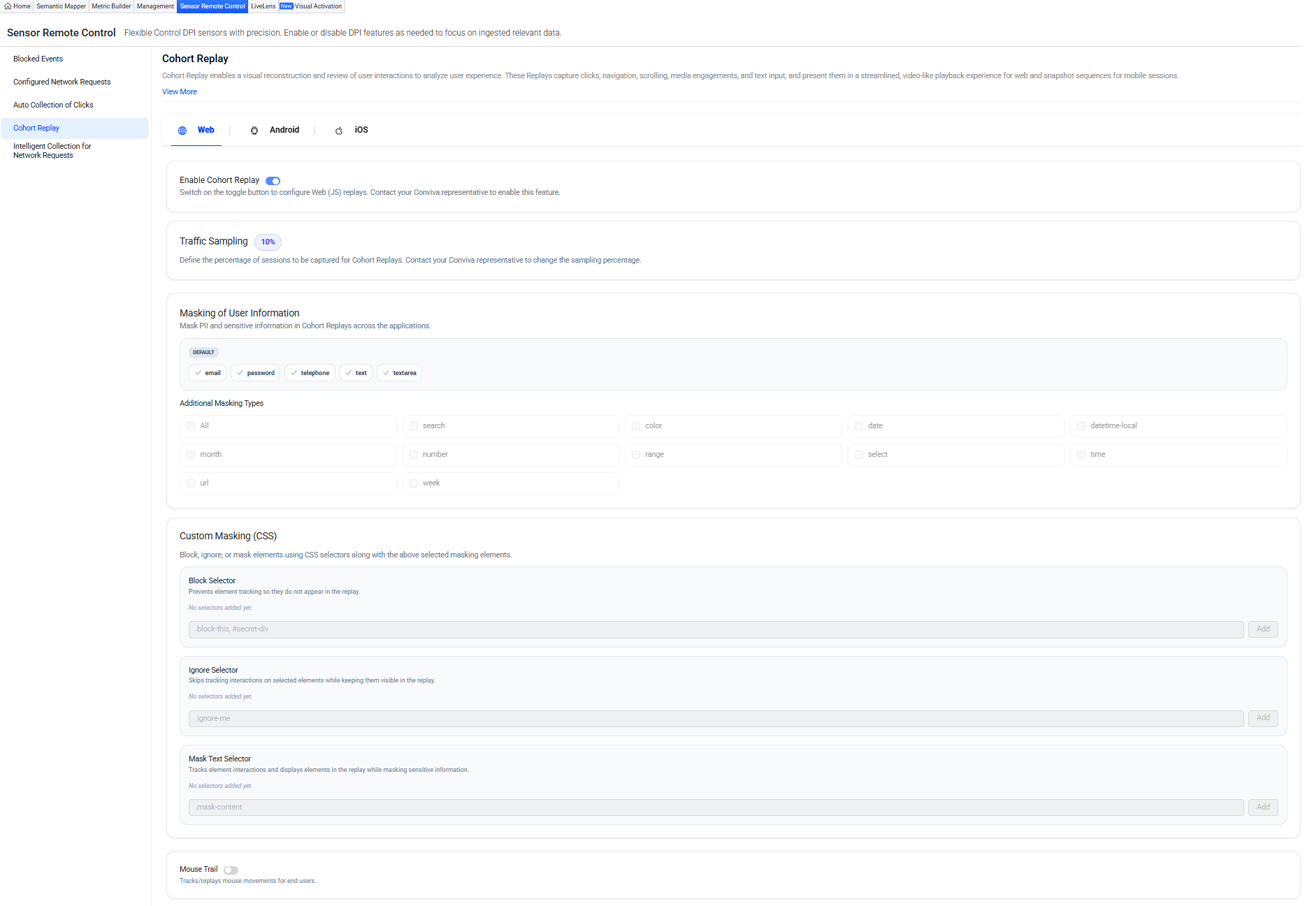
 Web Cohort Replay
Note: Cohort Replay configuration in Sensor Remote Control is restricted to Conviva Administrators due to sampling constraints. Only Conviva Admins can modify or update these settings. Contact your Conviva Administrator to request any changes to the configuration.
-
Enable Cohort Replay: Switch the Enable Cohort Replay toggle to start recording user sessions at the specified sampling percentage and data masking.
-
Traffic Sampling: The sampling percentage specifies the proportion of the devices enabled for Cohort Replay. The value entered in the Sampling Percentage field determines the percentage of devices enabled for recording.
-
Masking: Conviva provides data masking features to protect Personally Linked/Locatable (PLL) data from being exposed during session recordings. This capability prevents sensitive user information from being captured, stored, or exposed in recorded sessions.
The masking configuration supports multiple categories of user information, enabling organizations to control how sensitive data is handled while maintaining operational visibility. Conviva, by default, masks common sensitive data, with the option to include additional UI elements for masking as required.
-
Default Masking – Commonly sensitive user information, such as email addresses, passwords, telephone numbers, text inputs, and text areas.
-
Additional Masking (Optional) – UI field categories such as search fields, colors, dates, datetime-local inputs, months, numbers, ranges, selections, times, URLs, and weeks.
Use these options to configure masking policies that meet security and compliance requirements while effectively analyzing session behavior.
-
-
Custom Masking (CSS): Conviva provides a Custom Masking (CSS) feature to protect additional sensitive or personally identifiable information (PII) during session recordings. Customers specify the elements to mask and define the masking level to maintain precise control over data visibility and data confidentiality.
Specify Block, Ignore, or Mask CSS selectors to mask specific elements.
-
Block Selector: Prevents selected elements from being tracked and displayed, ensuring they do not appear in the session replay.
-
Ignore Selector: Skips interaction tracking for selected elements while keeping them visible in the session replay.
-
Mask Text Selector: Tracks interactions and displays selected elements in session replay while masking sensitive information.
-
-
Mouse Trial: Enable the mouse trail setting to ensure that cursor movement is captured and rendered during session playback. When active, the system records the complete cursor path, enhancing clarity and making diagnostics easier during session analysis.
Android Cohort Replay (Beta)
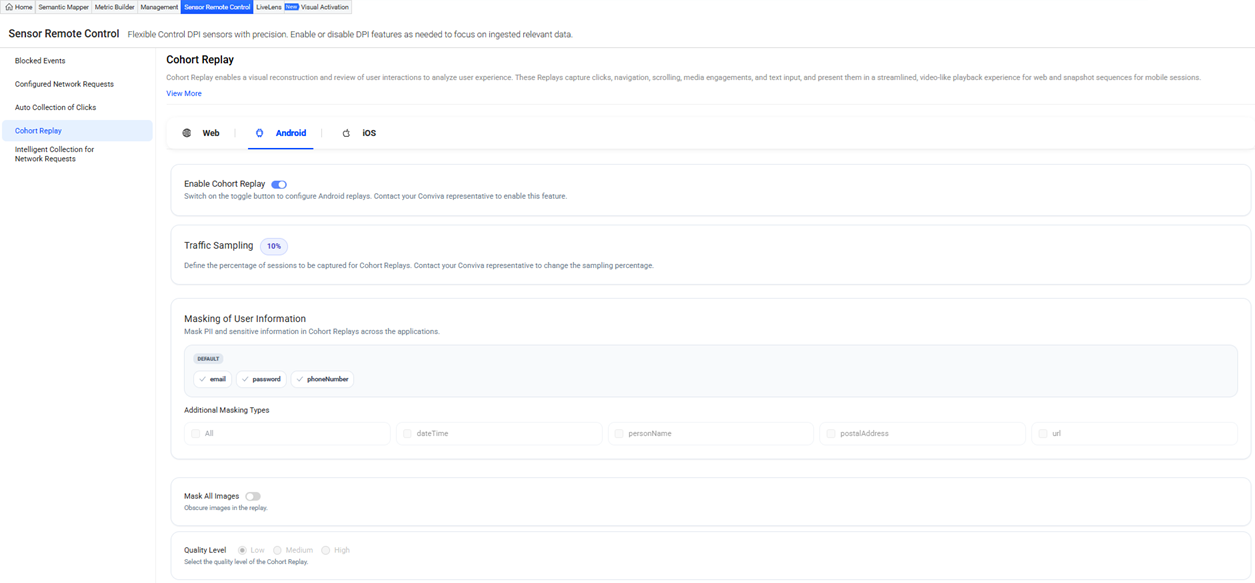
Note: Cohort Replay configuration in Sensor Remote Control is restricted to Conviva Administrators due to sampling constraints. Only Conviva Admins can modify or update these settings. Contact your Conviva Administrator to request any changes to the configuration.
-
Enable Cohort Replay: Switch the Enable Cohort Replay toggle to start recording user sessions at the specified sampling percentage and data masking.
-
Traffic Sampling: The sampling percentage specifies the proportion of the devices enabled for Cohort Replay. The value entered in the Sampling Percentage field determines the percentage of devices enabled for recording.
-
Masking: Conviva provides data masking features to protect Personally Linked/Locatable (PLL) data from being exposed during session recordings. This capability prevents sensitive user information from being captured, stored, or exposed in recorded sessions.
The masking configuration supports multiple categories of user information, enabling organizations to control how sensitive data is handled while maintaining operational visibility. Conviva, by default, masks common sensitive data, with the option to include additional UI elements for masking as required.
-
Default Masking – Commonly sensitive user information, such as email addresses, passwords, and numbers.
-
Additional Masking (Optional) – UI field categories such as Date Time, Person Name, and Postal Address.
Use these options to configure masking policies that meet security and compliance requirements while effectively analyzing session behavior.
-
-
Mask All Images: Switch on the toggle to obscure images during replay. This prevents exposure of sensitive visual information. When activated, all images appearing in the replay are masked to support data privacy and compliance.
-
Quality Level: Specify the rendering quality of the Cohort Replay. Options Low (default), Medium, and High allow adjustment of replay fidelity based on performance considerations, network conditions, or analysis needs. This setting provides flexibility in balancing visual clarity with system efficiency during cohort replays.
iOS Cohort Replay (Beta)
Note: Cohort Replay configuration in Sensor Remote Control is restricted to Conviva Administrators due to sampling constraints. Only Conviva Admins can modify or update these settings. Contact your Conviva Administrator to request any changes to the configuration.
-
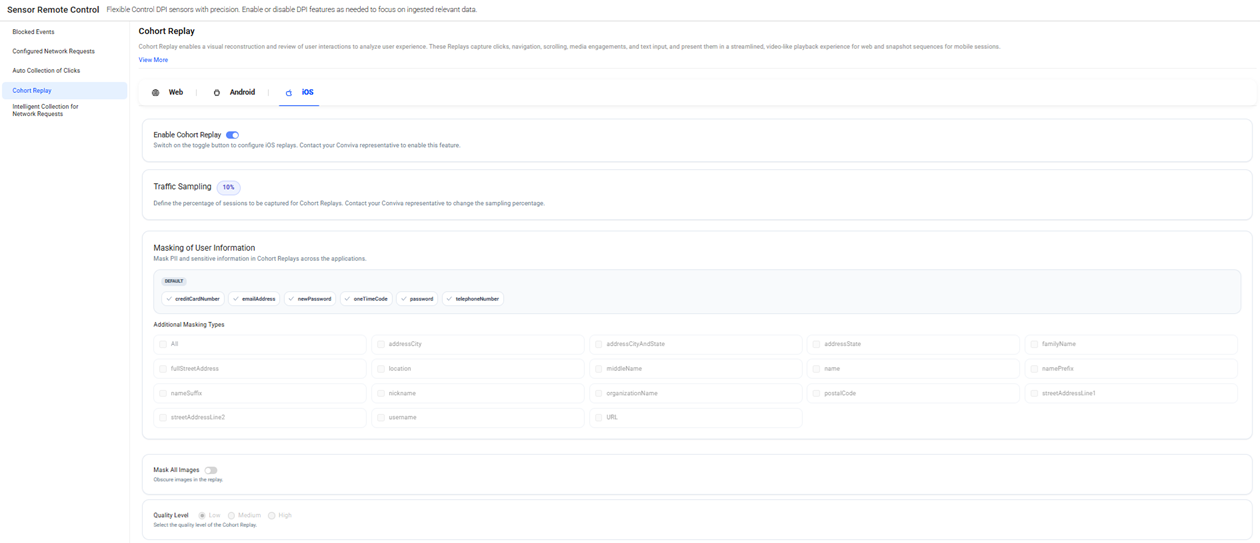
Enable Cohort Replay: Switch the Enable Cohort Replay toggle to start recording user sessions at the specified sampling percentage and data masking.
-
Traffic Sampling: The sampling percentage specifies the proportion of the devices enabled for Cohort Replay. The value entered in the Sampling Percentage field determines the percentage of devices enabled for recording.
-
Masking: Conviva provides data masking features to protect Personally Linked/Locatable (PLL) data from being exposed during session recordings. This capability prevents sensitive user information from being captured, stored, or exposed in recorded sessions.
The masking configuration supports multiple categories of user information, enabling organizations to control how sensitive data is handled while maintaining operational visibility. Conviva, by default, masks common sensitive data, with the option to include additional UI elements for masking as required.
-
Default Masking – Commonly sensitive user information, such as credit card numbers, email addresses, passwords, one-time codes, and numbers.
-
Additional Masking (Optional) – Optional UI field categories such as Address Cities, Address State, Family Name, Location, Names, and others.
Use these options to configure masking policies that meet security and compliance requirements while effectively analyzing session behavior.
-
-
Mask All Images: Switch on the toggle to obscure images during replay. This prevents exposure of sensitive visual information. When activated, all images appearing in the replay are masked to support data privacy and compliance.
-
Quality Level: Specify the rendering quality of the Cohort Replay. Options Low (default), Medium, and High allow adjustment of replay fidelity based on performance considerations, network conditions, or analysis needs. This setting provides flexibility in balancing visual clarity with system efficiency during cohort replays.
Timeline
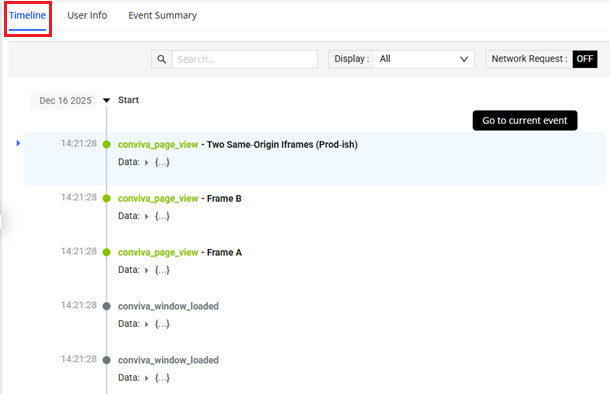
The Timeline provides a chronological view of all activities that occur during a session replay. It aligns playback behavior, events, network conditions, and errors along a unified time axis, enabling analysis of what happens and when it occurs. Also, the timeline provides the same color coding as the player timeline legends.
User Info
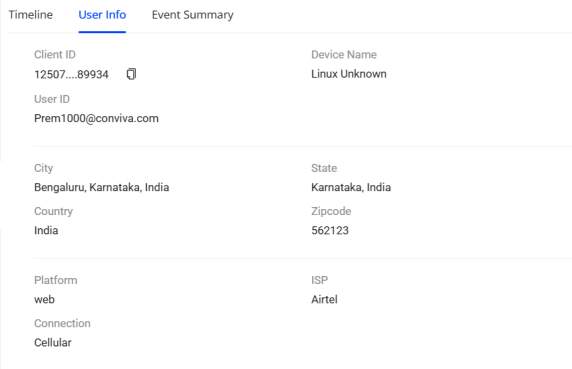
User Info is a collection of attributes and identifiers that describe the end user associated with a session, event, or interaction. It provides contextual details that help identify who the user is and understand their environment.
In technical and analytics contexts, User Info typically includes:
-
User identifiers (for example, user ID, Client ID)
-
Device and platform details (such as device name, operating system, browser)
-
Location or network attributes (for example, country, ISP)
-
Platform, Connection, and ISP details
Event Summary
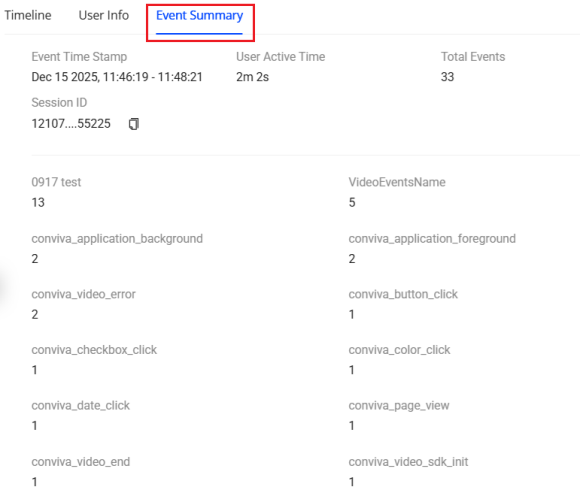
Event Summary provides a consolidated, high-level view of key events that occur during a session or specified time period. It highlights essential user interactions and system-generated events, including their categories, counts, and timestamps, enabling quick assessment of session activity and efficient troubleshooting without requiring detailed timeline analysis.
Legends
Legends provides the key indicators that explain the meaning of the different colors on the replay timeline.

Share Replay
Cohort Replay provides an option to share session replay details directly from the interface. Select the desired session, and click Share Replay to generate a shareable link. Sharing the replay details enabes seamless collaboration across teams. Sharing improves accessibility to replay insights, supports faster issue resolution, and strengthens cross-functional analysis by providing stakeholders with immediate visibility into session-level details.

Use Cases
-
Cohort Replay provides visibility into funnel conversion and related metrics. It captures the exact user experience with visual context, enabling the identification of anomalies or performance deterioration that may impact business outcomes.
-
The timeline view provides a visual representation of the user experience, facilitating drill-down analysis and supporting the identification of friction points, as well as analyzing user behavior.
-
Cohort Replay links anomalies to the corresponding user sessions. It displays the related replay when you select an anomaly in AI Alerts, providing a detailed analysis of user behaviour associated with the anomaly.
Technical Features and Limitations
During this beta release,
-
Input Masking: While the system masks sensitive fields (passwords, emails, text, etc.) by default, it does not yet mask Date, Month, Range, Time, or Week inputs; instead, it replaces them with static placeholder values (e.g., dd/mm/yyyy for Date).
-
For any static resources that are required to be downloaded from a remote server, cross-origin access is required.
-
Does not support cohort replay for full-screen video playback using the native <video> element.
Cohort Replay supports navigation through multiple tabs and subdomains, providing a seamless playback experience during replay sessions.
-
Recording Persistence
-
Incomplete Uploads: If a user closes the application or browser before the recording has been uploaded, the corresponding session content will not be visible in Pulse. Recording resumes only when the browser or application is relaunched.
-
Remote Disablement: If recording is disabled remotely (through configuration) after a session has been captured, there is a risk of losing up to the last one minute of replay data.
-
-
Performance and Rendering Constraints.
-
UI Rendering Behavior: Lazy-loaded interfaces may cause playback inconsistencies, including occasional overlaps or artifacts in the recorded session.
-
Event Volume Limit: Automatically discards recorded events once the event count exceeds 5,000 entries, which may truncate longer or more interaction-heavy sessions.
-
-
Content Capture Gaps
-
PDFs Not Recorded: Content rendered within PDF viewers is not captured and do not appear in cohort replay playback.
-
Shadow DOM:
-
Does not capture inputs within the open Shadow DOM.
-
Does not capture elements in the Closed shadow DOM and therefore remains invisible to replay.
-
-
-
This beta release supports Cohort Replay for web applications only. Cohort Replay for mobile devices is not available in this release.
-
Sampling percentage and masking levels are read-only within the platform interface. Contact your Conviva Representative for setting adjustments.
-
Cohort Replay does not support session recordings with Canvas and other player interaction tools.
-
Session recordings do not support session recordings of web applications embedded with multiple <iframe> elements.
For the initial beta release, functionality has been scoped to a limited set of features. In upcoming releases, we plan to broaden coverage to include additional features. Through systematic development, we aim to deliver measurable improvements in customer satisfaction, reduce friction across digital interactions, and drive more substantial ROI through higher engagement and retention.
Note: Cohort Replay is provided free of charge during this beta release. When this feature transitions to a General Availability (GA) release, cohort replay will be billed in accordance with the terms of your contract with Conviva.
Cohort Replay Cohort Remote Control Cohort Replay Session Remote Control Cohort Replay Session Remote Control